
FalconTrader help & user guide
Everything you need to set up FalconTrader, understand it, and use it day-to-day — from your first sign-in to fine-tuning notifications.
1. Overview
FalconTrader trades Bitcoin for you automatically through your own Bitvavo account. You create an API key, paste it into the app once — and the bot does the rest. Live charts, status indicators, and push notifications keep you in control at all times.
What the app does
- Watches the BTC/EUR market 24/7.
- Places buy and sell orders on your Bitvavo account according to the rules you set.
- Shows live holdings, profit, status, and history per bot.
- Sends push notifications when your bot buys or sells.
- Archives statistics periods so you can analyse long-term performance.
What the app does not do
- It cannot withdraw funds from your Bitvavo account — the API key isn't granted that permission.
- It is not a guarantee of profit. Market risk stays with you as the owner of the coins.
- It is not investment advice.
Your Bitcoin and Euros sit exclusively in your Bitvavo account. FalconTrader never holds any balance — the app only sends trade orders to Bitvavo on your behalf.
2. Requirements
Before you start, you need three things: a smartphone (iPhone or Android), a FalconTrader account, and a Bitvavo account.
iOS 17 or newer, or Android 8 or newer. Tablets work through compatibility but aren't the primary target.
Created on first launch or via our website. An active subscription is needed for your bot to appear.
Free Bitvavo account (EU-regulated, based in the Netherlands). Verified with ID and funded in EUR.
Push notifications are optional, but recommended — otherwise you'll miss real-time trades.
Create your Bitvavo account and deposit funds first. Then connect the app. Without funds on Bitvavo, the bot can't do anything.
3. Account & sign-in
On first launch, the app shows the sign-in screen. If you don't have an account yet, sign up on our website and pick a subscription — once it's active, your bot appears in the app automatically.
Signing in
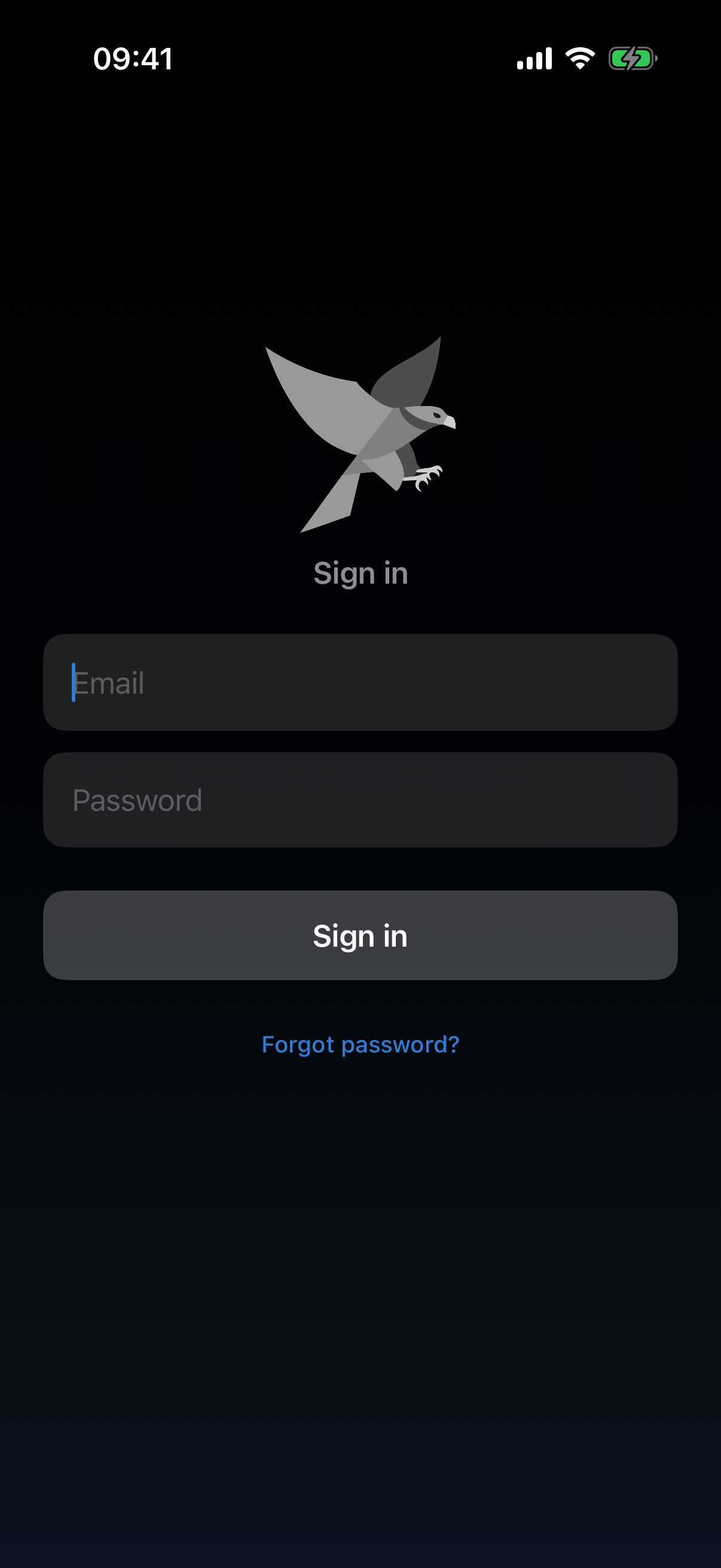
- Open the app — the login screen appears with Email and Password fields.
- Enter your credentials and tap Sign in.
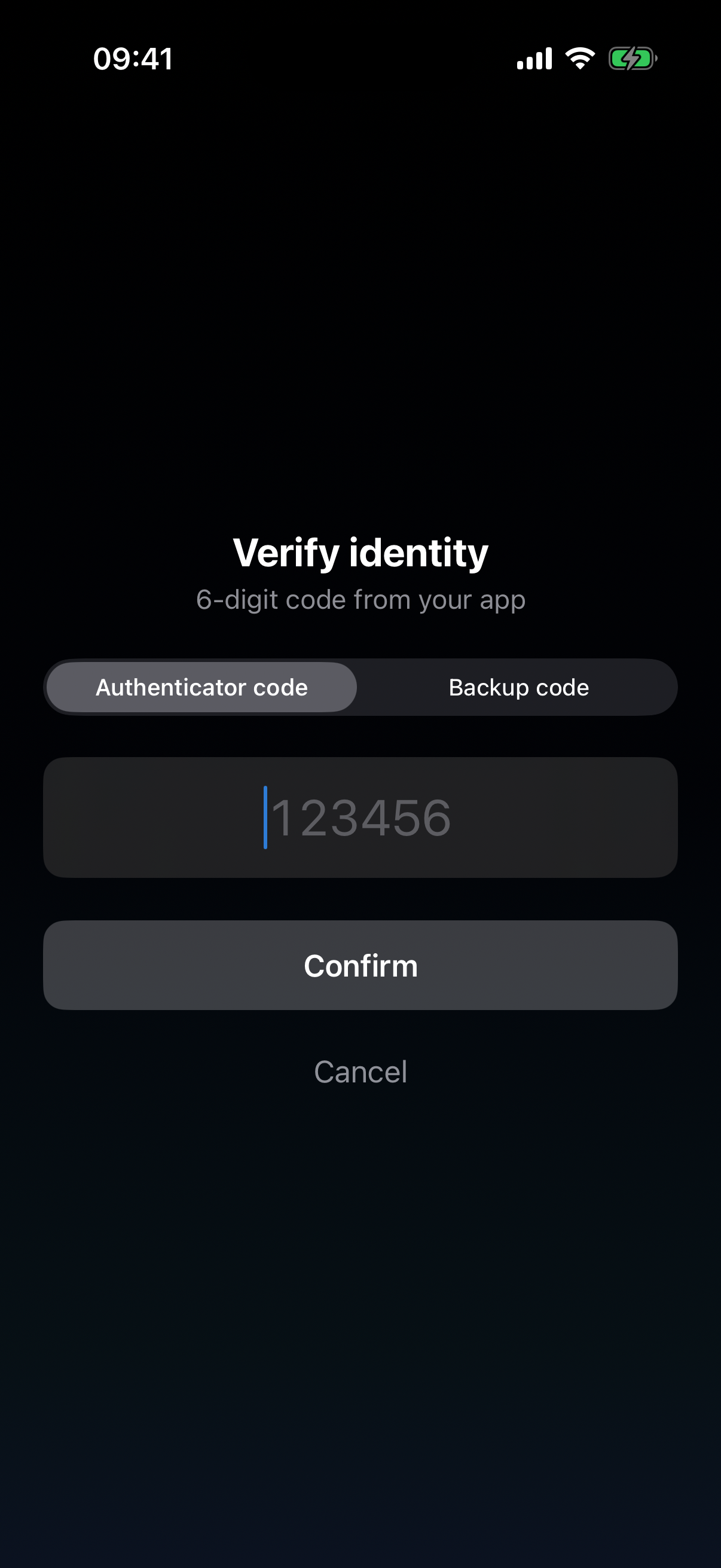
- If two-factor (2FA) is enabled on your account, the next step asks for a code from your authenticator app or a backup code.
Forgot password
Tap Forgot password? on the sign-in screen. Enter your email address — if we have it on file, you'll receive a reset link. For privacy reasons we always confirm sending, regardless of whether the address exists.
Two-factor sign-in
If 2FA is on, the app asks for a 6-digit code from your authenticator app (Google Authenticator, 1Password, Authy …) after the password. Lost your phone? Switch to Backup code at the top and enter one of your one-time backup codes. Each backup code works exactly once.
4. Connecting Bitvavo
For your bot to trade on your Bitvavo account, it needs an API key — a technical access credential you generate inside your Bitvavo account. Not a password, just a permission you can revoke at any time.
Create the API key on Bitvavo
- Sign in to Bitvavo
Open bitvavo.com in your browser and sign in.
iTipOpen the Bitvavo site in the browser on the same device that has the FalconTrader app installed. That way you can copy your API key and secret straight from the browser and paste them into the app later — no typing required. Bitvavo currently doesn't offer a QR code, so transferring them from a second device would be far more cumbersome.
- Open the API section
In the menu, go to Settings → API.
- Create a new key
Click “Create new API key". Give it a descriptive name, e.g. “FalconTrader".
- Set permissions — View and Trade only
Enable
View informationandTrade. Never enableWithdraw funds. The bot doesn't need withdrawal rights — and we don't grant them. - Copy key and secret
Bitvavo shows you the API key and the secret. The secret is shown only once — copy both immediately.
- Confirm the activation email
Bitvavo sends a confirmation email after key creation. Click the link in it — otherwise the key won't work.
Until you click the activation link in the Bitvavo email, FalconTrader's connection attempt fails with “authentication failed" — even if both key and secret are correct. The key is only armed after you confirm the email.
Enter the key in FalconTrader
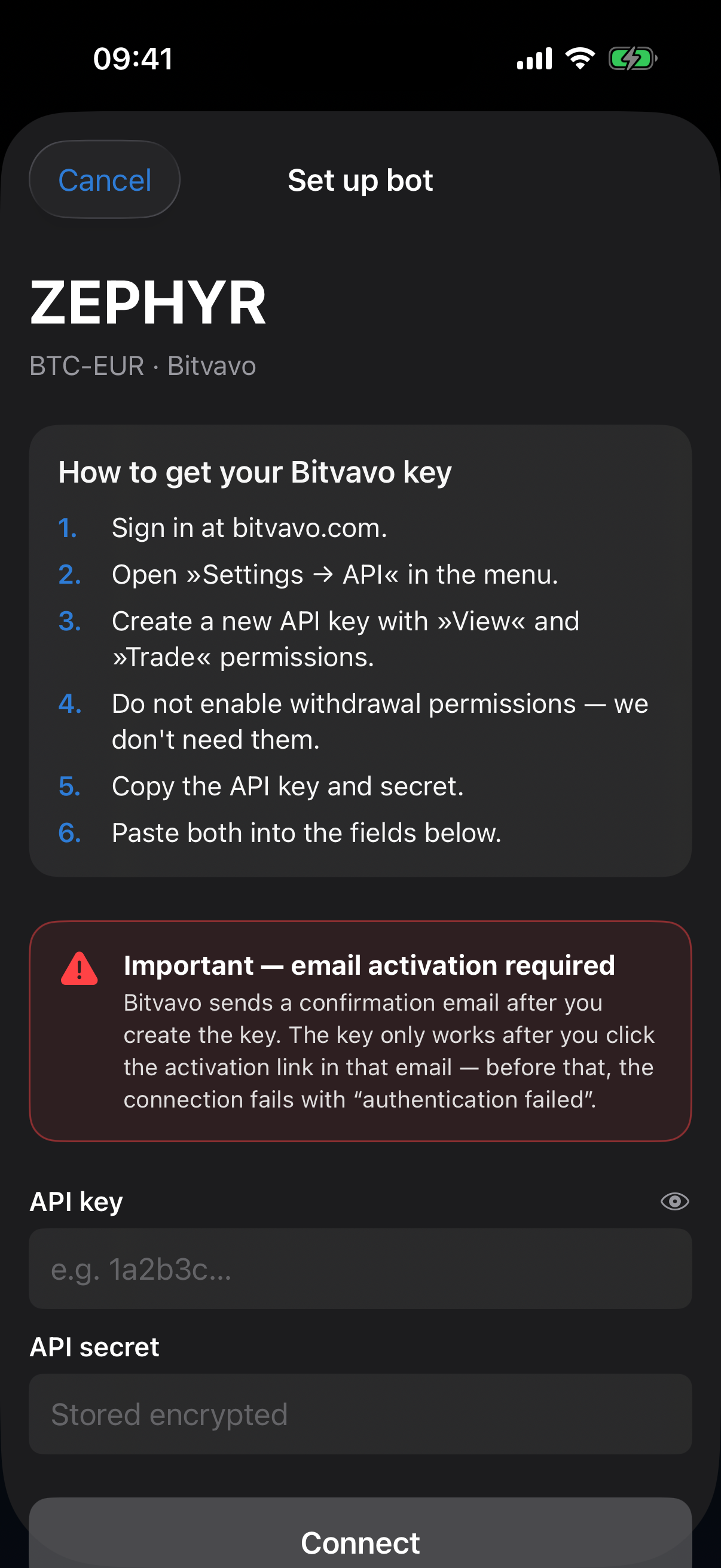
As soon as your subscription is active, a bot card with a “Set up" button appears in the app. Tap the card:
- The setup sheet opens with instructions.
- Paste the API key and secret into the matching fields. (The secret is masked — tap the eye icon to reveal.)
- Tap Connect. You'll be asked to confirm the action with your password or 2FA code (step-up verification).
- FalconTrader validates the key against Bitvavo. If it passes, your bot goes active on the next cycle.
Key and secret are AES-256 encrypted server-side before they touch the database. The app itself never stores them permanently. And because the key has no withdrawal permission, it can never move Euros or coins off your account — only place buy/sell orders inside Bitvavo.
5. The dashboard
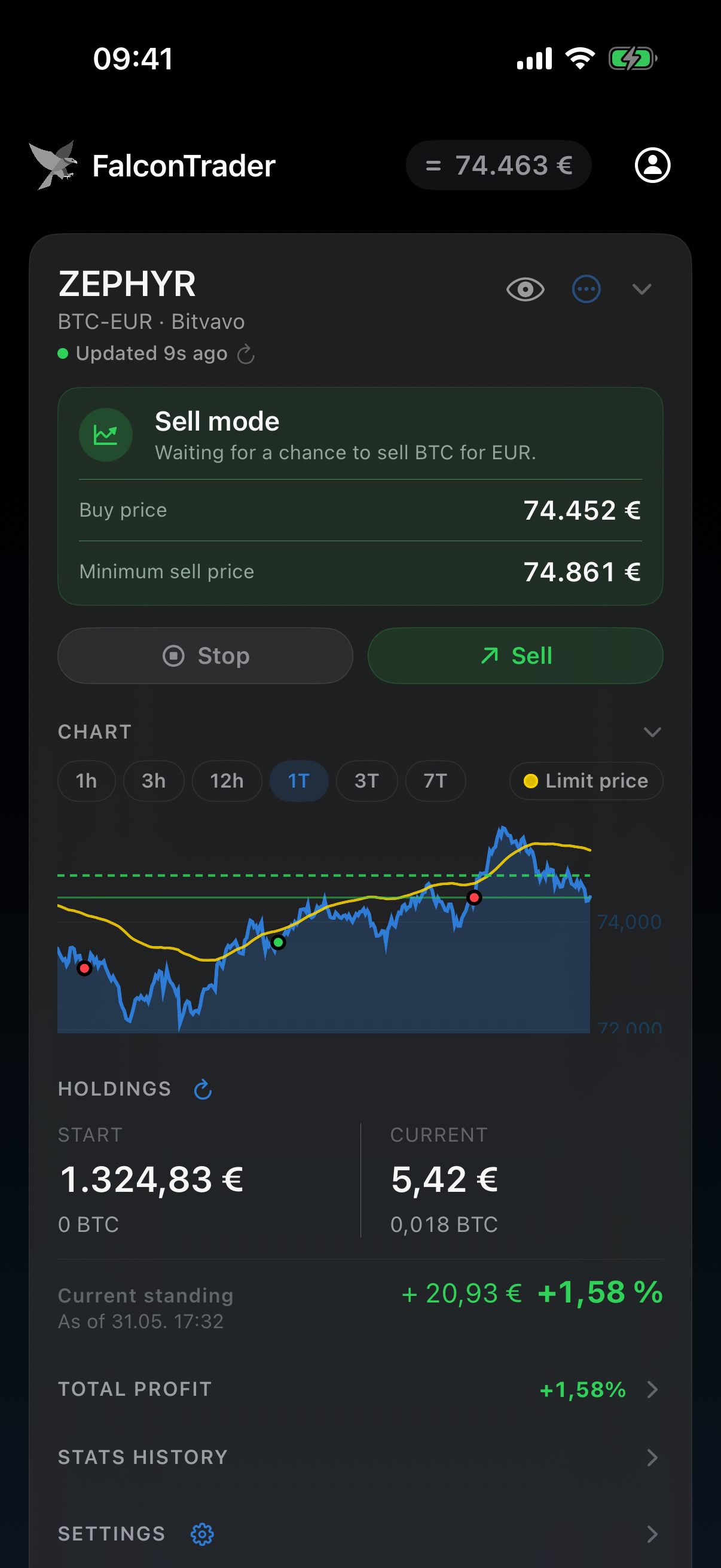
Once signed in, you see the main screen: header on top, one card per bot below. Pull down on the list to refresh.
Header & BTC ticker
The header is always visible:
- Logo + wordmark on the left.
- BTC ticker in the centre — current Bitcoin price with a trend arrow (▲ green up, ▼ red down, = grey flat).
- Profile icon on the right — opens your account, language, security, subscription, etc.
Bot card
Each card belongs to one bot. If you have multiple bots they stack vertically; once you have more than three, cards start collapsed — tap the arrow in the top right to expand a card.
What you see at the top of the card
- Bot name (nickname or generated name) with the trading pair info below (e.g.
BTC-EUR · Bitvavo · since 03/05/2026). - “Updated X s ago" with a colour dot: green = fresh (≤ 10 s), yellow = 10–30 s old, red = older. Tap the dot to refresh now.
- Eye icon — hides all amounts and BTC quantities (useful in public).
- Three-dot menu — rename, pause/resume, delete the bot.
- Arrow top right — collapses or expands the entire card.
Status pill
Right below the header you see a coloured status pill. It's the single most important element on the card — it tells you at a glance what your bot is doing:
Bot is observing the market below the limit price, waiting for the right moment.
An initial condition is met. The bot waits for a second confirmation before buying.
The buy order sits at Bitvavo. The bot waits for execution confirmation.
You hold BTC. The bot is waiting for a chance to swap back to Euro.
The sell order sits at Bitvavo. The bot waits for execution.
The bot hasn't reported data yet — typical right after connecting; clears on the next cycle.
In “Sell mode" the status pill also shows two important values: your buy price (what you entered at) and the minimum sell price above which the bot will sell.
The two main states, side by side
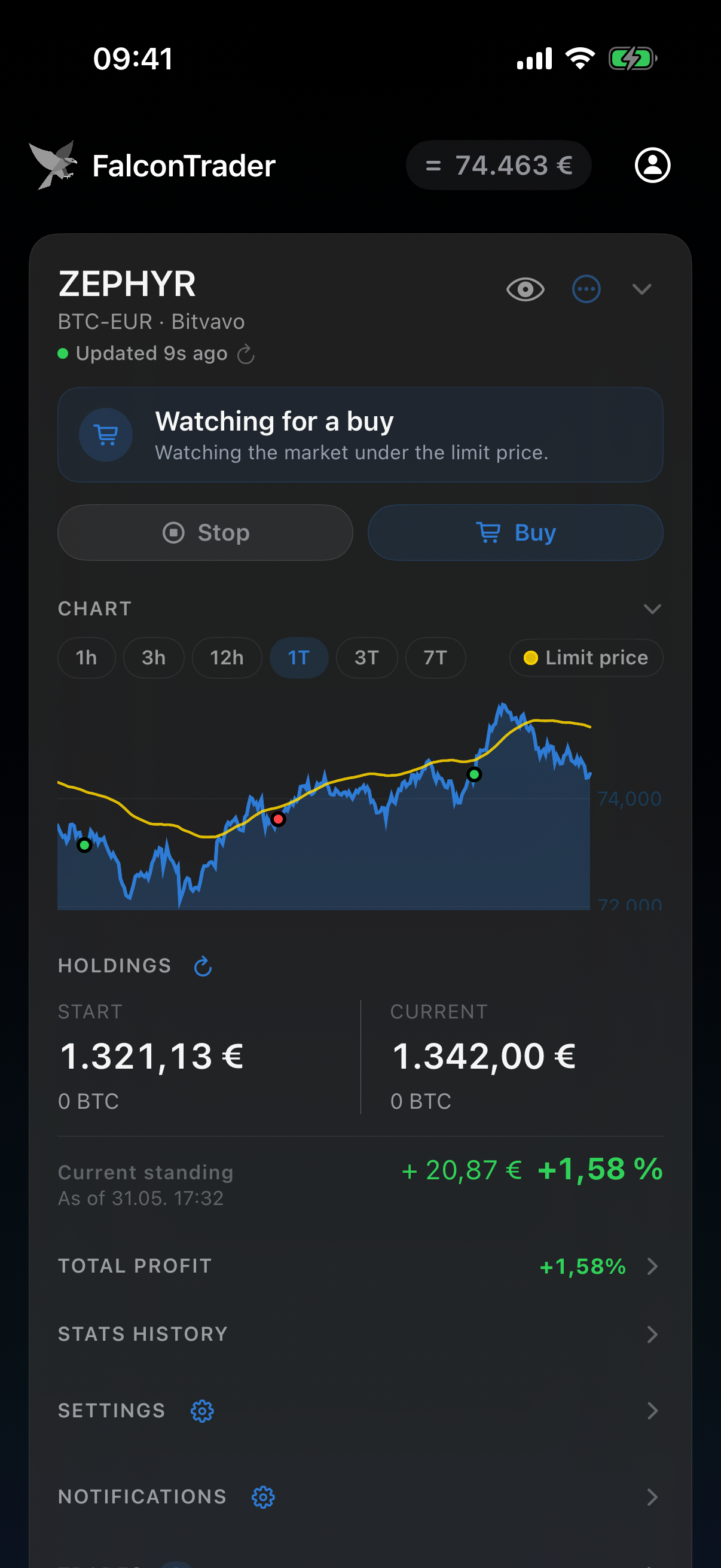
The bot is fully in Euro, watching for a good entry (“Watching for a buy"). Holdings show 0 BTC.
The bot holds BTC and waits for the right moment to sell. You see the buy price and minimum sell price, and the sell-trigger line on the chart.
Holdings & profit
The HOLDINGS block has two columns:
- Start — Euros and BTC at the beginning of the current statistics period (or since the last manual save).
- Current — Euros and BTC right now.
Below that:
- Current standing — fluctuating profit/loss, including unrealised coin value marked to market.
- After last sell — the most recently realised profit, which is locked-in Euro and no longer fluctuates.
The small refresh arrow next to “HOLDINGS" asks the server to re-pull live Bitvavo balances — useful after you deposited or withdrew funds externally.
Chart & time range
Above the holdings block you can view the price chart. Choose from several time windows (e.g. 15 min, 1 h, 1 day, 1 week). When you're in sell mode, the app additionally draws your buy price and the sell threshold as reference lines.
Tap the “Total profit" section to see a curve of your account value since the start of the current statistics period.
6. Controlling the bot
The bot trades autonomously most of the time. You can step in manually at any point — via the chips below the status pill and the three-dot menu in the top right.
Chips below the status pill
One or two chips appear here, depending on the current state:
Toggles auto-trading on and off. When off, the bot keeps watching but no longer buys or sells — handy for short breaks without fully pausing the bot.
Forces an immediate buy at market price. Only shown while the bot is waiting for a buy opportunity.
Forces an immediate sell of held coins. Only shown while you currently hold BTC.
Cancels the open Bitvavo order. Shown while a buy or sell order is pending.
Three-dot menu
- Rename — set a nickname that replaces the generated name. Empty restores the original.
- Pause / Resume bot — unlike “Stop", this also stops watching. The bot does nothing until you resume it.
- Delete bot — removes the bot. Note: only the connection is removed; your Bitvavo coins remain untouched. Requires confirmation with password or 2FA.
A forced buy or sell executes immediately, regardless of whether the usual conditions are met. Use these actions only when you know what you want.
7. Settings
The Settings section of the bot card controls how aggressively or carefully your bot acts. Tap the section, then Edit in the top right to adjust values together.
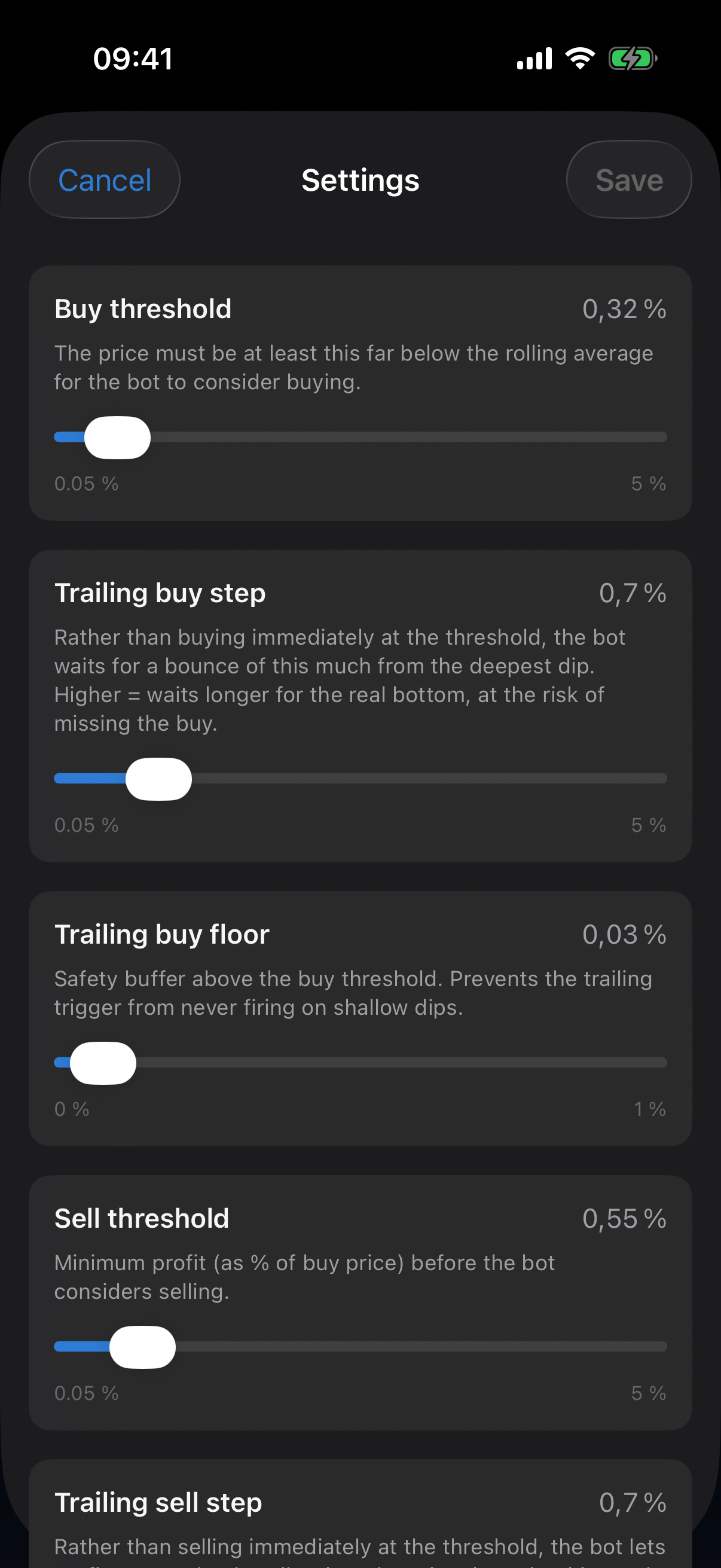
Changing values
In the edit sheet each setting shows its name, value, description, and the matching control (slider for percentages, switch for on/off, number field for free-form values). Tap the value in the top right to type a precise number — comma is accepted. Tap Save and the change applies from the next cycle.
The settings explained
buy_percentHow far the price must drop below the reference mark before the bot buys. Lower values = more frequent buys, earlier entry. Higher values = rarer, more patient buys.
trailing_buy_stepRather than buying immediately at the threshold, the bot waits for a bounce of this much from the deepest dip. Higher = waits longer for the real bottom, at the risk of missing the buy.
trailing_buy_floor_bufferSafety buffer above the buy threshold. Prevents the trailing trigger from never firing on shallow dips.
sell_percentHow far above your own buy price the market must move before the bot sells again. Lower = frequent, small gains. Higher = rarer but larger gains per trade. Important: The exchange's trading fees must be factored in. On Bitvavo a full buy-and-sell cycle costs around 0.5 %. If the sell threshold is below that, every closed trade ends in a net loss. That's why the default is 0.55 %.
trailing_stepRather than selling immediately at the threshold, the bot lets profits run and only sells when the price drops by this much from the high. Higher = lets profits run further, at the risk of missing the sell on sharp reversals.
trailing_floor_bufferSafety buffer above the sell threshold. Prevents the trailing trigger from never firing on shallow peaks.
limit_price_offsetShifts the upper market ceiling above which the bot stops buying. Positive values allow buys at higher prices; negative makes the bot more conservative.
disable_auto_tradingWhen on, the bot keeps watching but performs no buys or sells. Useful for short breaks without breaking the statistics period.
disable_buyWhen on, the bot stops opening new positions but still sells existing coins. Use this if you want to wind down a position without taking on new exposure.
Start with the default buy and sell thresholds. Watch how often the bot trades for one or two weeks. If you want more frequent small trades, lower both values slightly. If you prefer rarer, larger trades, raise both slightly.
8. Notifications
For each bot you decide when your device should push you. The push permission itself applies to the whole app and is enabled once via the profile (see Account & profile).
buy_pushYou receive a push notification as soon as the bot has successfully filled a buy order.
sell_pushYou receive a push notification once the bot has sold (profit realised).
Make sure Profile → Security shows “Push enabled". If it shows “Enable push", tap it and grant iOS permission. Also check iOS Settings → Notifications → FalconTrader and confirm banners aren't disabled.
Make sure Profile → Security shows “Push enabled". Also allow notifications under Settings → Apps → FalconTrader → Notifications (on Android 13+ you're asked on first login).
9. Stats history
The Stats history section lets you archive time periods so you can compare performance over longer stretches.
Save current period
When the bot is in buy mode (i.e. holding Euros, not BTC), you can close the running period with a tap on Save current period. A new period starts at zero and the period you just closed appears in the list.
A period should start and end with a clean Euro value. While you're holding BTC, the “end value" still has market exposure — so saving is only available once you're fully back in Euro.
Open a period
Tap any entry in the list to see details: start/end balance, realised profit, trade count — plus every trade that occurred during that period.
Auto-closed periods also show up here: e.g. when you delete the bot (“Bot deleted") or when your subscription ends (“Subscription cancelled").
10. Account & profile
Tap the person icon in the top right to open your profile. From here you manage language, security, subscription, and referrals.
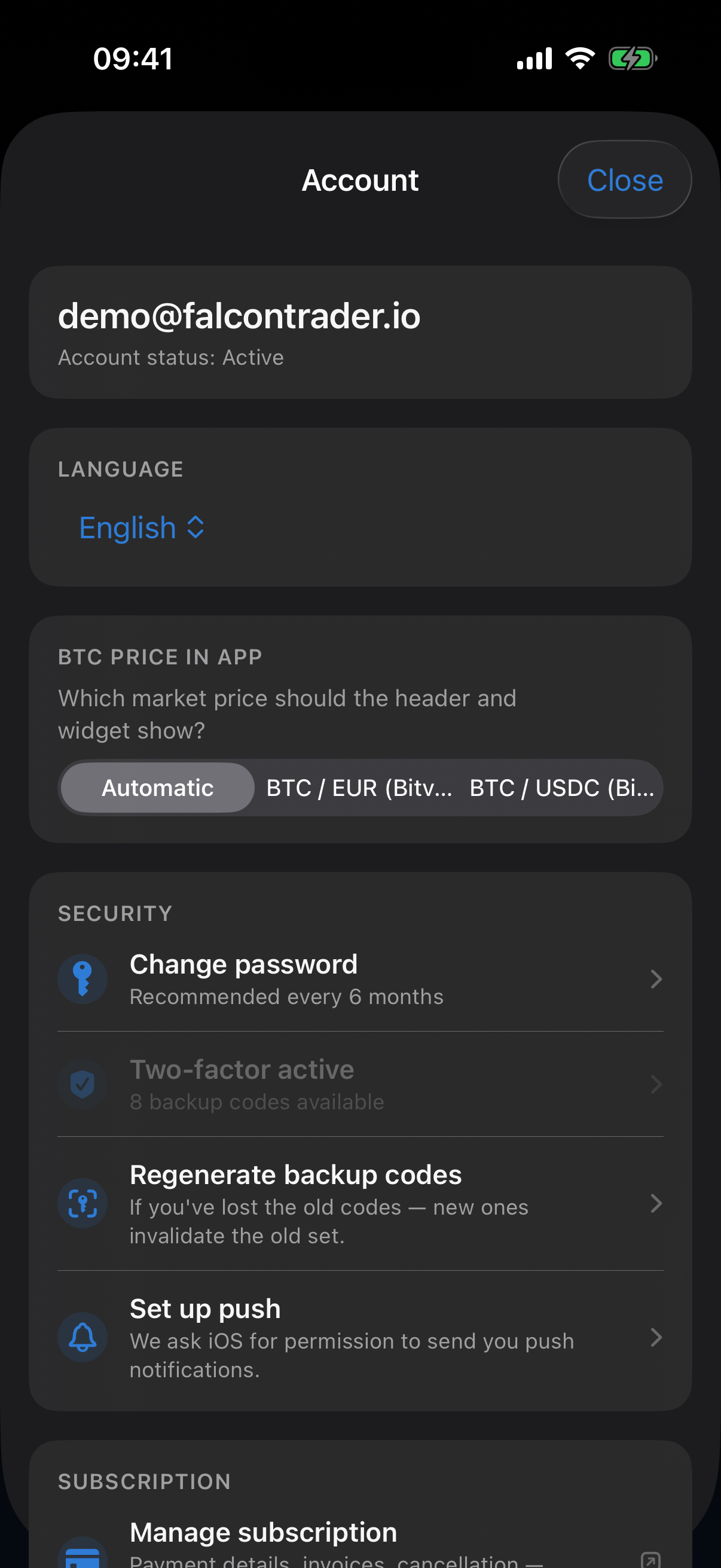
Language
Switch between Deutsch, English, Nederlands, Slovenščina, Slovenčina, Polski, Italiano, Español and Français. The choice is bound to your account, so it carries over to any other device you sign in on.
BTC price in app
Pick which market price the header and widget should show:
- Automatic — follows your bots (default).
- BTC / EUR (Bitvavo) — fixed Euro price.
Enable push
Grants iOS push permission for the app. If you previously denied it, the app jumps to iOS Settings.
Android asks for notification permission on first login (Android 13+). If you denied it, enable it under Settings → Apps → FalconTrader → Notifications.
Sign out
The red button at the bottom signs you out. Your bots keep running server-side — signing out has no effect on trading.
11. Security & 2FA
FalconTrader moves real money on your Bitvavo account. Treat your account accordingly.
Change password
Profile → Security → Change password. Enter your current password, the new one and a repetition. Recommended every six months.
Set up two-factor authentication (2FA)
- Open profile → Set up two-factor
The app shows you a QR code.
- Scan with your authenticator app
Open your authenticator app (Google Authenticator, 1Password, Authy …) and scan the code.
- Enter first code
Type the 6-digit code from the authenticator app to confirm the binding works.
- Store backup codes
You'll get a set of one-time backup codes. Print them or save them in a safe place — they're your emergency access if you lose your phone.
Without a 2FA code AND without backup codes, you can no longer sign in. For security reasons we can't reset this — write them down on paper or store them in a password manager.
Regenerate backup codes
If the old codes are lost or used up, generate new ones from the profile. Important: new codes invalidate all old ones.
Step-up for sensitive actions
For critical operations the app asks for your password or 2FA code again — even when you're already signed in:
- Storing API keys
- Deleting a bot
- Regenerating backup codes
That way someone briefly grabbing your phone can't cause damage.
How your keys are stored
Your Bitvavo API secret is AES-256 encrypted before it touches our database. The encryption key is held separately — even a database breach wouldn't hand the secret to an attacker.
12. Widget
With the BTC price & bots widget you have the current Bitcoin price and your bots' status right on your home screen.
Add the widget
- Long-press an empty spot on the home screen until icons wiggle.
- Tap + in the top left.
- Search for FalconTrader and pick a size.
- Tap Add widget.
- Long-press an empty spot on the home screen.
- Tap Widgets.
- Find FalconTrader in the list and long-press the widget.
- Drag it to the spot you want — then you can freely resize it.
Supported sizes
On Android the widget lives on the home screen and can be freely resized (from about 3×2 cells). There are no lock-screen widgets for it.
The widget shows the BTC/EUR price (default). Which market price appears is controlled in the profile under BTC price in app.
iOS decides how often the widget pulls data — usually every few minutes. If a widget hasn't refreshed in a while, tapping it (which opens the app) triggers a re-render.
Android refreshes the widget roughly every 15 minutes in the background. If it hasn't updated in a while, tapping it (which opens the app) triggers a re-render.
13. Subscription & referrals
FalconTrader is subscription-based. Billing is handled through our payment provider Stripe.
Manage subscription
Profile → Manage subscription. You're forwarded to the Stripe customer portal where you can:
- Add, change, or remove a payment method
- Download invoices
- Cancel or resume your subscription
Invite friends
Profile → Invite friends. You get a personal referral link. If a friend signs up through your link, you both get one month free.
14. FAQ & troubleshooting
“Authentication failed" during setup
The most common cause: Bitvavo emailed a confirmation link after you created the API key, and you haven't clicked it yet. Confirm the email and try again. If that doesn't help, double-check that the key has both View and Trade permissions.
Red “bot paused" warning on the card
The bot paused itself for safety — usually because Bitvavo returned unexpected data or your account temporarily wasn't allowed to trade. The text in the red banner explains the exact reason. Use the three-dot menu to resume the bot.
Card shows “Updated X min ago" in red
The app hasn't received fresh data from the server. Pull the bot list down to refresh. If the problem persists, toggle airplane mode or check Wi-Fi / cellular.
Push notifications aren't coming through
Three places to check:
- iOS Settings → Notifications → FalconTrader → Allow Notifications.
- FalconTrader profile → Security → must show “Push enabled", not “Enable push".
- Bot settings → Notifications → the individual switches (buy, sell …) must be on.
- Android Settings → Apps → FalconTrader → Notifications → allow.
- FalconTrader profile → Security → must show “Push enabled", not “Enable push".
- Bot settings → Notifications → the individual switches (buy, sell …) must be on.
Values suddenly hidden (••••)
You tapped the eye icon at the top right of the bot card. Tap it again and the values come back.
App crashes or hangs
Force-quit the app (swipe up from the home indicator, swipe the preview away) and reopen. If the issue persists, update iOS or reinstall the app — your data lives on the server, you won't lose anything.
Force-quit the app (swipe it away from the recent-apps overview) and reopen. If the issue persists, update Android or reinstall the app — your data lives on the server, you won't lose anything.
Can I have multiple bots?
Yes. On a plan with multiple slots, you get one card per slot. Each bot has independent settings.
What happens if I cancel my subscription?
Your bot stops trading at the end of the paid period. Your coins and Euros stay untouched on Bitvavo. Associated statistics periods are archived as “Subscription cancelled".
15. Support
If this guide doesn't solve your problem:
Email our support: support@falcontrader.de
To help us respond faster, please include:
- The email address of your account
- The bot number or bot name (shown at the top of the card)
- A brief description of the problem
- For display issues: a screenshot
Note: FalconTrader is not investment advice. Trading cryptocurrencies is risky. Only invest amounts you can afford to lose entirely.